Exporting to NWB
Table of contents
- Introduction
- Step 1: Export the project or session
- Step 2: Install brainstem-nwb
- Step 3: Write the configuration file
- Step 4: Run the export
- Step 5: Read the manifest and validation report
- Step 6: Optional extension output
- Limitations
- Next steps
Introduction
BrainSTEM exports a project, or a single session with everything it touches, as one versioned JSON file. The brainstem-nwb converter turns that file into Neurodata Without Borders files, one per session and subject, with a manifest and a validation report.
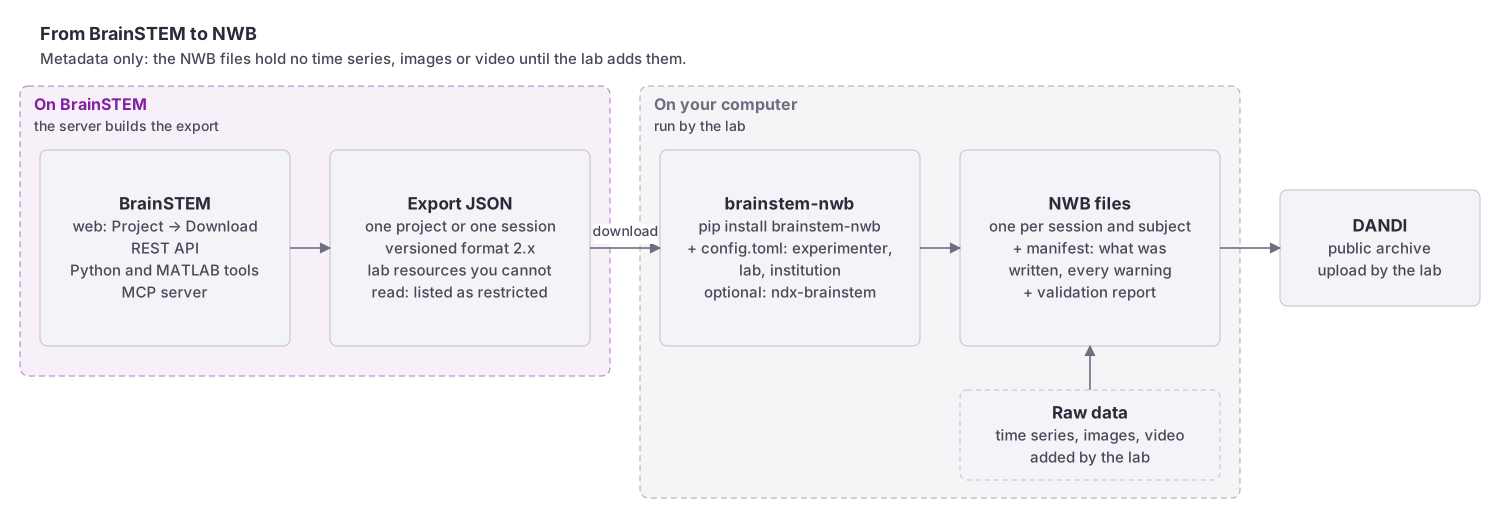 From BrainSTEM export JSON through brainstem-nwb to one NWB file per session and subject with a manifest and validation report; metadata only, raw data added separately.
The converter is metadata only: it writes the session, subject, surgeries, viruses, drugs, devices, electrode groups and epochs, but no time series, images or video. Add the raw data to the NWB files separately. Read the Limitations before you plan on it.
You need read access to the project (Member or above). Exports count against a limit of 30 per hour per user.
Step 1: Export the project or session
From the web interface
- Open the project’s details page.
- Click Export → Download project data.
- On the Download project page choose:
- File format: JSON (the NWB converter reads JSON; XLS is a workbook for reading, not for conversion).
- Contents: Whole project, or one session. One session suits one NWB file.
- JSON options: Compress JSON output (gzip) for large projects, and Prepare in the background and email me when it is ready when the direct download times out. Background files are kept for 7 days and listed under Your background exports.
- Click Download. The file is named
project_<id>_data_<timestamp>.jsonor.json.gz.
From Python
With the Python API tool 2.1 or later:
from brainstem_api_tools import BrainstemClient

client = BrainstemClient()          # browser sign-in on first use
export = client.export_project('<project-uuid>')
export = client.export_session('<session-uuid>')
export = client.export_project('<project-uuid>', background=True)   # large projects
From MATLAB
With the MATLAB API tool 2.1 or later. Use the 'file' option to keep the original JSON for the converter; the returned struct has sanitized field names (records.stem_project instead of "stem.project").
client = BrainstemClient();
client.export_project('<project_uuid>', 'file', 'project-export.json.gz');
export = client.export_project('<project_uuid>', 'background', true);
A direct export that takes longer than about 30 seconds fails; switch to the background option. The file format is described on the Exports page.
Step 2: Install brainstem-nwb
pip install brainstem-nwb
Python 3.10 or newer. The package installs pynwb, nwbinspector and the Python API tool. For the extension output (step 6) also install ndx-brainstem.
Check the installation:
brainstem-nwb --version
Step 3: Write the configuration file
NWB requires the experimenter, lab and institution. BrainSTEM does not store them per session, and the converter never guesses them. Put them in a TOML file, for example brainstem-nwb.toml:
[nwbfile]
experimenter = ["Last, First", "Other, Person"]
experimenter_source = "config"    # or "session_creator"
lab = "My Lab"
institution = "My University"

[subject]
label_field = "name"              # or "name_used_in_storage": used for subject_id and file names
species_format = "binomial"       # or "ncbitaxon": NCBI Taxonomy IRI, preferred by DANDI
Only the [nwbfile] and [subject] sections are allowed. Set experimenter_source = "session_creator" to take the experimenter from the user who created each session instead.
Step 4: Run the export
From the downloaded file:
brainstem-nwb export --export-file project_<id>_data.json.gz --config brainstem-nwb.toml --output ./nwb/
Directly from the server, without downloading first:
brainstem login                                                  # once; browser sign-in with 2FA
brainstem-nwb export --project PROJECT_UUID --config brainstem-nwb.toml --output ./nwb/
brainstem-nwb export --session SESSION_UUID --config brainstem-nwb.toml --output ./nwb/
Useful options:
--dry-runbuilds the manifest without writing files, so you can check the warnings first.--session NAME(repeatable) selects sessions of a project by name or id.--overwritereplaces existing files.--no-device-flowin scripts and CI: the exporter stops with exit code 3 instead of waiting for a browser login. Give it the token with--tokenorBRAINSTEM_API_TOKEN.
The output folder looks like this:
nwb/
├── sub-<subject>/sub-<subject>_ses-<session>.nwb
├── brainstem-nwb-manifest.json
├── validation-report.json / .txt
└── source/brainstem-export-….json.gz     # the export, when fetched from the server
Exit codes: 0 success, 1 some sessions failed, 2 usage or configuration error, 3 authentication or download failure, 4 validation errors.
Step 5: Read the manifest and validation report
brainstem-nwb-manifest.json lists every unit (one session and subject pair), with its status (planned, written, up_to_date or failed), the records it was built from, which values were present, missing or not exported, and every warning with a reason. Nothing is dropped silently. Common warnings:
| Code | Meaning |
|---|---|
SESSION_START_TIME_MISSING | The session has no date and time. No file is written for it. Add the date in BrainSTEM and export again. |
EXPERIMENTER_NOT_AVAILABLE, LAB_NOT_AVAILABLE | Missing from the configuration file. |
REGION_NOT_RESOLVED | A target region could not be matched to an atlas. |
RESTRICTED_LAB_RESOURCES | The export referenced setups, stocks or protocols you cannot read. |
SUBJECTS_INFERRED | The subject of a session was inferred rather than named on the session. |
validation-report.txt combines three checks: pynwb validation, the NWB Inspector with the DANDI configuration, and BrainSTEM’s own checks (manifest consistency, metadata-only content, and DANDI readiness: subject id, species, sex, age or date of birth). Run the validation again on an existing folder with:
brainstem-nwb validate ./nwb/ --inspector-config dandi
Step 6: Optional extension output
Core NWB has no place for most BrainSTEM fields. With the ndx-brainstem extension the complete records are stored in the file:
pip install ndx-brainstem
brainstem-nwb export --export-file project.json.gz --config brainstem-nwb.toml --output ./nwb/ --extension brainstem
This adds a /general/brainstem group with one table per record kind (projects, subjects, sessions, specimen sets, procedures, interfaces, materials, acquisitions, manipulations, epochs, logs, catalog entries and more). Each typed row names its schema as <Family>/<Type>@<version>, and a schema table lists the permanent URL of every schema version; --embed-schemas stores the schema documents themselves. Coordinates in bregma- and lambda-based absolute systems and in Allen CCFv3 are also written as ndx-anatomical-localization tables. --herd writes the ontology terms (NCBI Taxonomy, RRIDs, atlas regions) as a sidecar file.
Limitations
- Metadata only. No time series, electrode positions, imaging planes, position or video data, or trials. Raw-data conversion is planned.
- Export format 2.x required; format 2.1 is needed for regions, publications, suppliers, user names and log entries.
- Experimenter, lab and institution must come from the configuration file.
- Brain-surface coordinate systems and approach angles are not written as localization points.
- Sessions without a start time get no file.
- Devices and electrode groups come from the equipment and experimental interfaces named on the session’s data acquisitions; acquisitions without them produce none.
Everything that could not be written is listed in the manifest with a reason.
Next steps
- Prepare the metadata: the converter can only write what BrainSTEM holds. The Electrophysiology Workflow and Ex vivo workflow show which records to fill.
- Understand the export: the Exports page describes the JSON format in full.
- Read the mapping: the brainstem-nwb page has the table of what goes where, and
brainstem-nwb mappingprints the full specification. - Let an agent do it: the
brainstem-exportagent skill drives the converter from a plain-language request; see Working with AI.