Dashboard
Table of contents
- Overview
- Default layout
- Managing widgets
- Getting started checklist
- Latest changes
- Recent activity
- Statistics and caching
- Active projects
- Related
Overview
The dashboard is the landing page of each portal. It is made of widgets: cards that show your newest records, statistics and activity. You choose which widgets are shown and how they are arranged. Click any item in a widget to open its details page.
Each portal has its own dashboard: the private portal shows the projects you can read and the public portal shows public projects. The index page of each app section (for example the Subjects section) also has its own dashboard with widgets for the models in that section. Each dashboard layout is saved separately.
Default layout
The private dashboard starts with three columns:
| Column | Widgets |
|---|---|
| Left | Getting started, Projects, Data storage, Consumable statistics |
| Middle | Latest changes, Subjects, Inventories, Hardware device statistics |
| Right | Subject status, Sessions, Setups, Strain statistics |
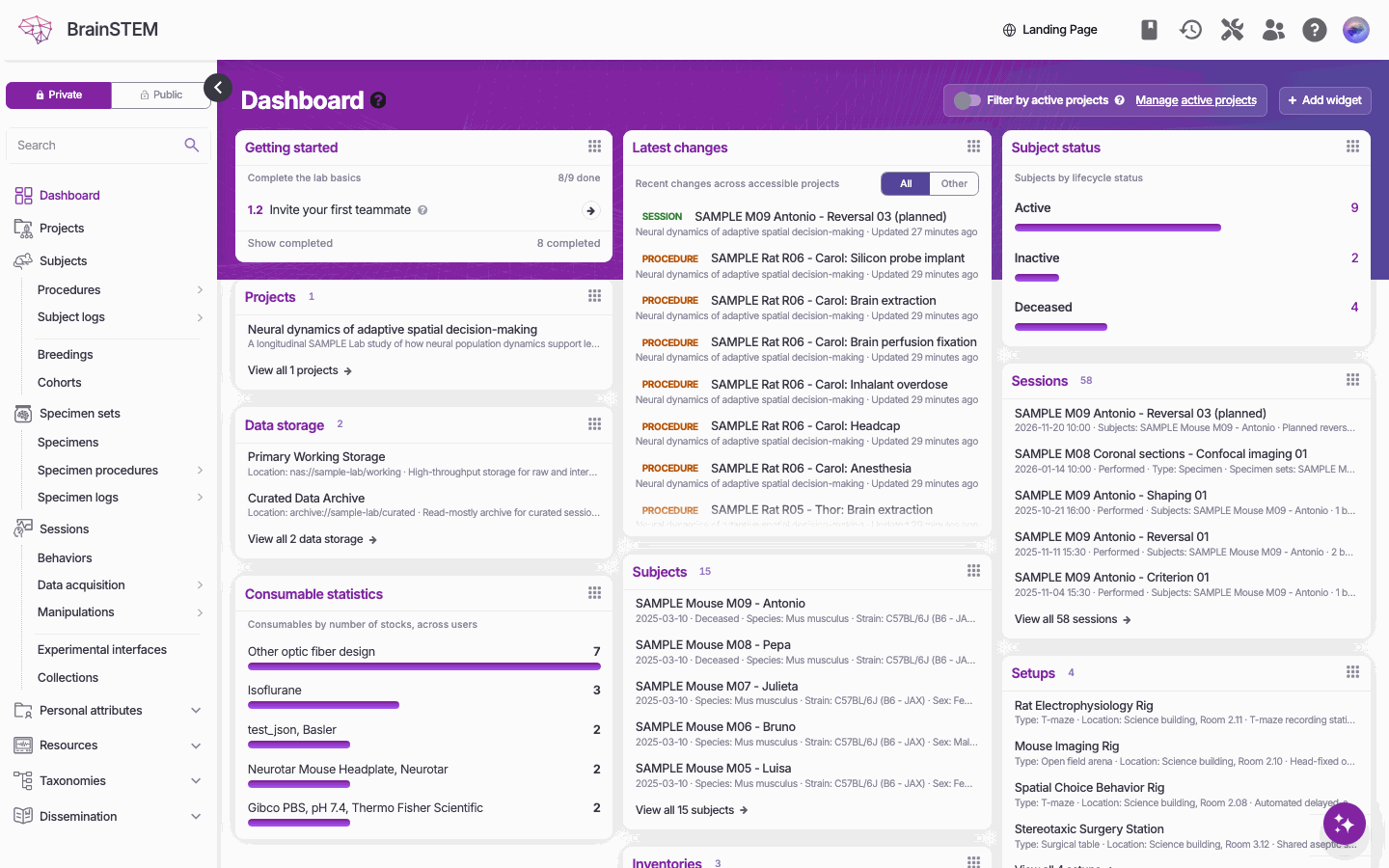
The dashboard: Getting started, Latest changes and Subject status at the top, then widgets for projects, sessions, subjects, data storage, setups and consumable statistics.
The public dashboard uses the same layout without Getting started and Latest changes. When the active projects filter is on, the Projects card is titled Active projects.
Managing widgets
The dashboard tools sit in the header, to the right of the page title (on a narrow screen, click the gear icon to show them):
- Add widget opens the Manage widgets dialog: “Select the widgets shown on your dashboard. New widgets are added at the top.” Use Search widgets… to find a widget, tick the widgets you want and click Save. The dialog counts “N widgets shown.” At least one widget must stay selected.
- Reset layout, at the bottom of the same dialog, restores the default layout after a confirmation: “Restore the default widget layout? This will replace your current dashboard widgets.”
- The active projects switch and Manage active projects are also in the tools of the private main dashboard. See active projects.
To rearrange widgets, drag a widget by its handle to a new position or to another column. Click the x of a widget to remove it. Widgets cannot be collapsed and have no individual settings. Anonymous visitors to the public portal cannot customise the dashboard.
Widget catalogue
The Manage widgets dialog groups the widgets of the main dashboard as follows:
| Group | Widgets |
|---|---|
| Getting started | Getting started (private portal only) |
| Activity | Latest changes (private portal only), Most active projects, Records per month, Recent subject logs |
| Records | Projects, Subjects, Sessions, Data storage, Inventories, Setups: each shows the count and the five newest entries, with a View all link |
| Experiments | Subject status, Module mix, Data acquisition types, Procedure types, Publication coverage, Your templates |
| Lab resources | Setup utilization, Inventory status, Expiring stock (stock expiring in the next 30 days) |
| Catalog statistics | Strain statistics, Consumable statistics, Hardware device statistics |
| Approvals and invitations | Pending approvals, Your pending invitations |
App dashboards add record cards and statistics for their own models, such as Collections, Procedures, Behaviors, Data acquisition, Equipment, Manipulations, Procedure log, Subject logs, Publications, Behavioral assays, Setup types statistics, Anatomical regions statistics and Journal statistics.
Getting started checklist
The Getting started widget tracks the first steps of a new user under the heading Complete the lab basics, with a progress counter (for example “3/9 done”):
- Collaborate: join or create a group, and invite your first teammate.
- Prepare your environment: add your first setup, behavioral assay, inventory and data storage.
- Structure your work: create your first project, add your first subject and create your first session.
Each step links to the page where it is done and is ticked off automatically. Remove the widget once you no longer need it.
Latest changes
The Latest changes widget lists recent changes across the projects you can read, up to 30 rows. Switch between All and Other to hide your own changes. For a longer, filterable feed use the Recent Activity view described below.
Recent activity
Click the clock icon in the header (on mobile: Tools → Recent activity) to open the Recent Activity dialog. It lists the changes you are allowed to see, 50 at a time, with a Load More button. Each card shows the record type and a link to the entry, when it was created or updated, who made the change, a New or Changed tag and a Changes: summary of up to six fields.
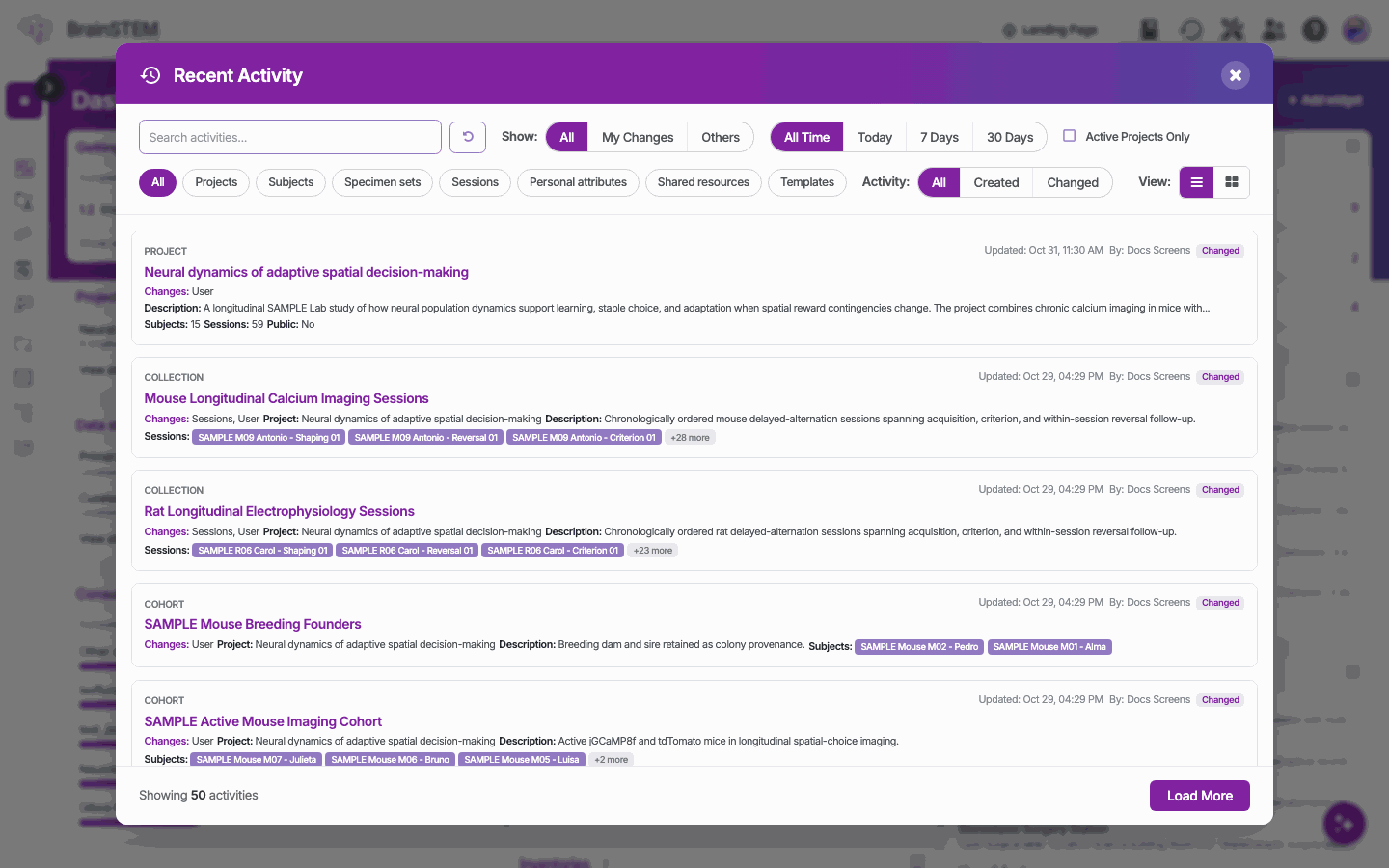
Recent Activity: changes across your projects, filtered by who, when, kind of record and kind of change.
Filters at the top of the dialog:
| Control | Options |
|---|---|
| Search | Free text search of the activities (Reset all filters clears everything) |
| Show: | All, My Changes, Others |
| Period | All Time, Today, 7 Days, 30 Days |
| Active Projects Only | Limit the feed to your active projects |
| Activity: | All, Created, Changed |
| Record type | All, Projects, Subjects, Specimen sets, Sessions, Personal attributes, Shared resources, Templates, each with tags for the individual models |
| View: | List or grid |
Statistics and caching
Statistics widgets count the records you can read: in the private portal the projects you have access to (narrowed by your active projects), in the public portal the public projects. Hover over a widget title to see how fresh it is; most widgets show “Cached · updates every 5 min”, “10 min” or “30 min”. There is no manual refresh button. The record cards and Subject status are always live.
Statistics count performed records only; planned records are left out (see Planning).
Active projects
When you turn on the active projects filter, the dashboard widgets, list views, form choices and the recent activity feed are narrowed to the projects you marked as active. The switch and the Manage active projects dialog are described on the list view page.
Related
- List view: the active projects switch and dialog that also narrow the dashboard
- Single entry view: the details page a widget item opens
- Planning: why planned records are left out of the statistics
- Projects: the entries behind the Projects widget and the active projects filter
- Get started: the steps the Getting started checklist tracks