User profile
Table of contents
- Overview
- Profile fields
- Atlas preference
- Group and project memberships
- Active projects
- API tokens
- Two-factor authentication
- Change password
- Active sessions
- AI assistant settings
- Related
Overview
Your profile page holds your account information, affiliation, preferences and memberships. Open it from the avatar menu in the top-right corner: Profile & Settings → View profile. The same menu holds the security pages under Security & access: Change password, Two-factor authentication, API tokens and Active sessions, and the AI assistant settings page when the assistant is enabled.
Profile fields
| Section | Fields |
|---|---|
| Account | Email, First name, Last name, User name in data storage (the name used for you in file systems and repositories), Bio |
| Affiliation | Department, Institution, City, Country |
| Professional Links | ORCID ID, Google Scholar, Website |
| User preferences | Atlas preference |
| Memberships | Group memberships, Membership invitations, Membership requests, Project memberships |
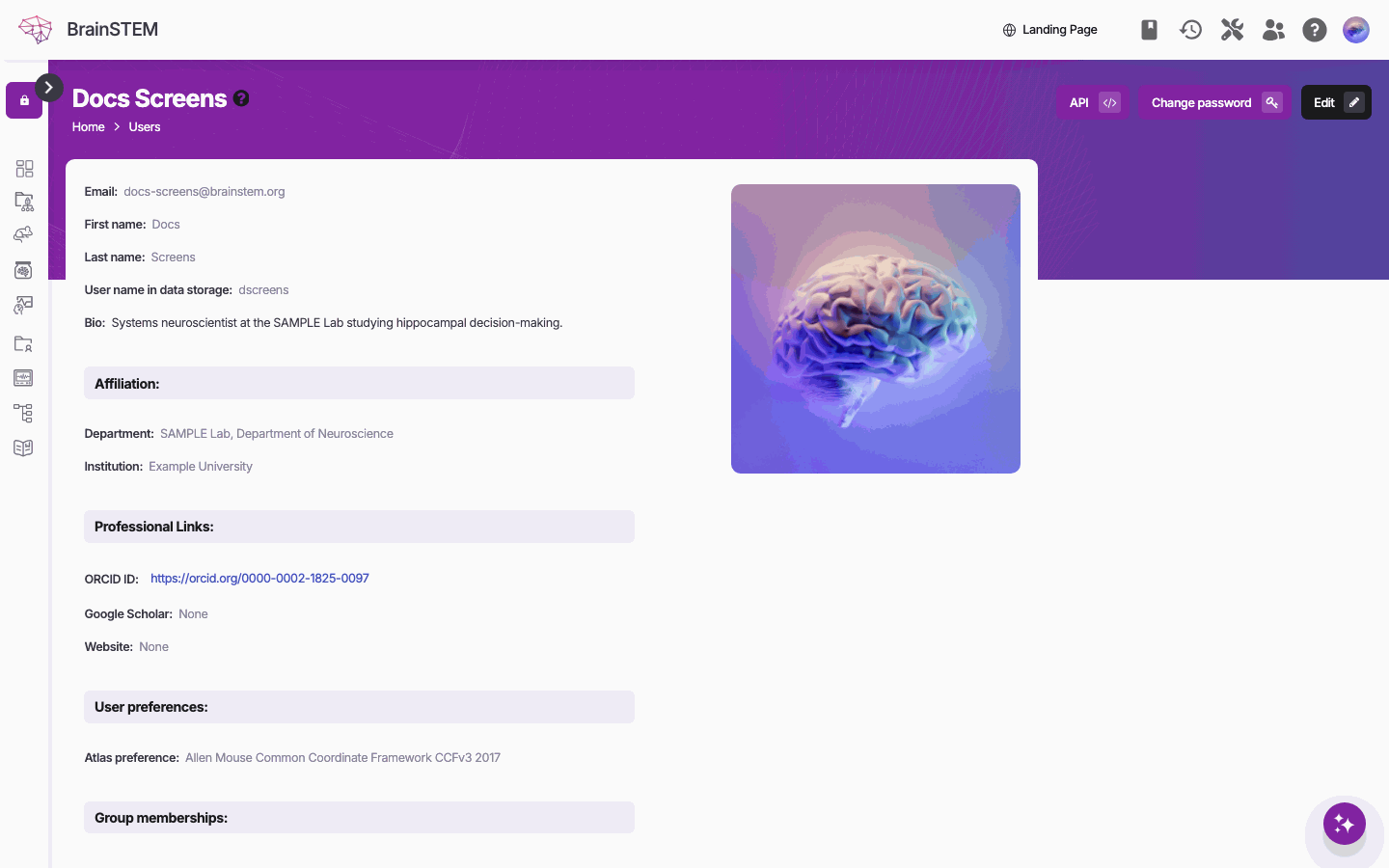
Your profile: email, name, user name in data storage, bio, affiliation, professional links and preferences, with your group memberships below.
Click Edit to change your details. The edit page also lets you upload a profile image (up to 5 MB) and change your email address through Change email securely: a confirmation link is sent to the new address and is valid for one hour.
A complete profile with an ORCID helps collaborators recognise you in shared projects. Public user pages show only your image and affiliation.
There are no preferences for time zone, date format, theme or page size.
Atlas preference
Atlas preference sets the brain atlas that is preloaded in the Atlas field of procedure and interface forms (“Your atlas preference will be preloaded in forms”). Choose the atlas you work with most, for example the Allen Mouse Common Coordinate Framework. You can still pick another atlas in each form. See Atlases and coordinates.
Group and project memberships
Group memberships lists the groups you belong to with your role: member, Manager (“Group managers can invite and remove group members.”) or Owner (“Group owners can edit group details and assign managers.”). Other users can see your membership from the group’s page.
Project memberships lists the projects you have access to and your level on each: Member (read), Contributor (read and edit), Manager (also manage memberships) or Owner (full control). This list is private. Invitations you have received and requests you have sent appear under Membership invitations and Membership requests; invitations sent to people without an account expire after 14 days.
Permissions are explained on the Permissions page. How to invite colleagues, answer invitations and leave a project is described in Sharing and memberships.
Active projects
The projects you mark as active act as a global filter across list views, dashboard widgets and forms. They are chosen from the Manage active projects dialog in the list toolbar or dashboard tools bar, not on the profile page. See Active projects.
API tokens
Security & access → API tokens opens API Token Management, where you create personal access tokens for the API and the API tools.
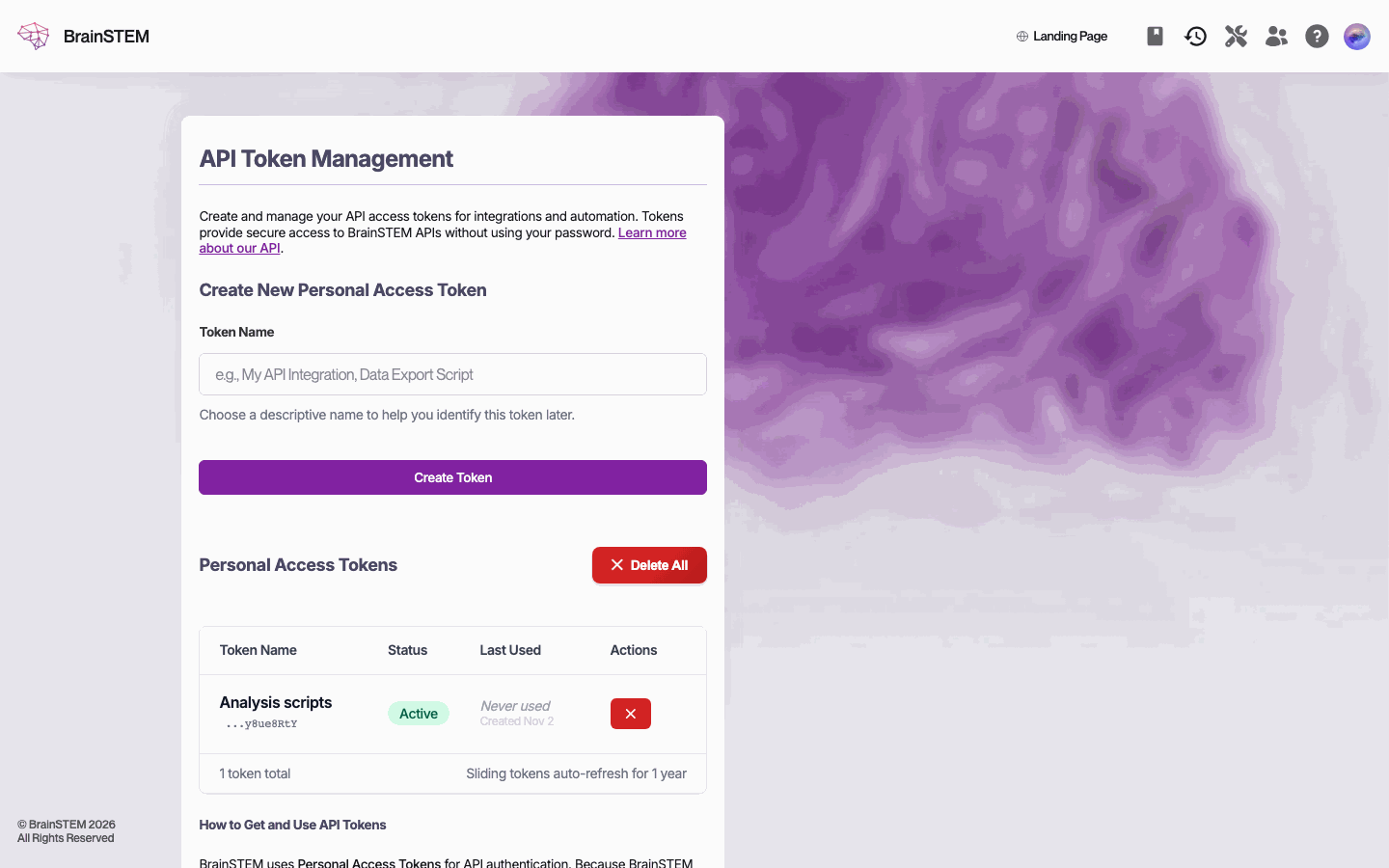
API Token Management: create a personal access token; the list below shows one token, Analysis scripts, active and never used.
- Creating a token requires two-factor authentication to be set up (“Set up two-factor authentication before creating an API token.”) and a recent confirmation of your identity (Confirm it’s you; valid for 10 minutes).
- Under Create New Personal Access Token, enter a Token Name (up to 64 characters, unique among your active tokens) and click Create Token.
The token is shown only once, right after you create it: “This token will only be shown once. Copy it now and store it securely.” Use Copy Token and keep it in a safe place; if you lose it, delete it and create a new one.
- You can hold up to 10 active tokens (“Maximum number of personal tokens reached (10).”). Each token is valid for one year, sliding: each use extends it by a year.
- The Personal Access Tokens table lists Token Name, Status, Last Used and Actions. Delete a single token with its ✕, or every token with Delete All (confirmed as Delete all personal access tokens?).
Command-line tools can also sign in through a device flow: the tool shows an 8-character code that you approve in the browser within 15 minutes.
Two-factor authentication
Security & access → Two-factor authentication lists your active methods (authenticator app, email) and backup tokens. See Two-factor authentication.
Change password
Change password asks for your current password, then a new password twice. If you have a two-factor method, a code is required first. A live checklist shows the rules: at least 8 characters with three of uppercase letters, lowercase letters, digits and symbols; not too similar to your personal information; not a commonly used password; and not one of your last 10 passwords.
Active sessions
Security & access → Active sessions lists where you are signed in: Device, Location, IP Address, Login Time, Last Activity and Session Type (Persistent when you ticked Keep me signed in, otherwise Temporary). The current session is marked CURRENT. Log out ends a single session; Log out of all other devices ends every session but the current one.
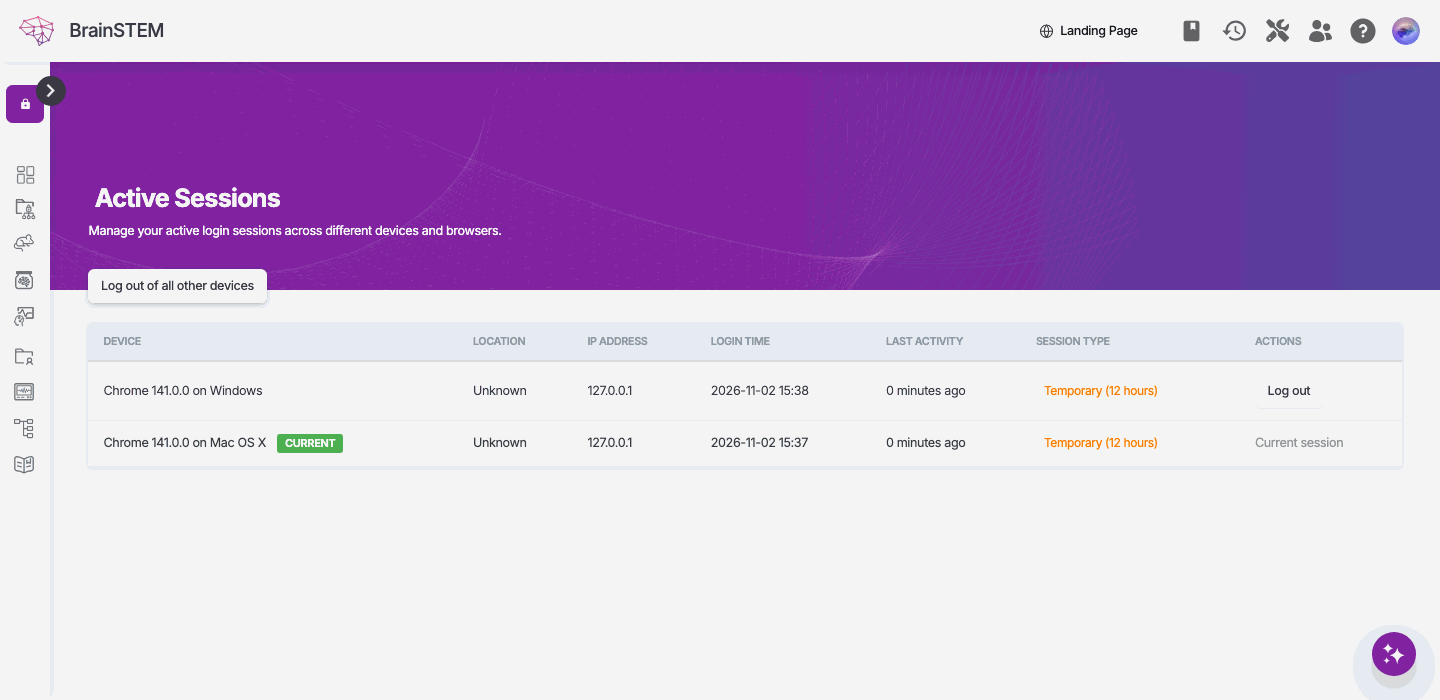
Active Sessions: the current session and a second one on another device with its Log out button, and Log out of all other devices at the top.
Session lifetime and lockout
| Rule | System default |
|---|---|
| Session without Keep me signed in | Lasts 12 hours |
| Session with Keep me signed in | Lasts 30 days from your last activity, and ends at the latest 365 days after sign-in |
| Failed sign-in attempts | After five failed attempts, sign-in for that account from that address is blocked for one hour |
| Sensitive actions, such as creating an API token | Ask you to confirm your identity again if your last confirmation is more than 10 minutes old |
Your institution’s security policy can shorten the session lifetimes, see Organisation policies.
AI assistant settings
When the AI assistant is enabled, Profile & Settings → AI assistant settings shows your usage of the shared allowance and lets you add your own provider key. See AI assistant.
Related
- Two-factor authentication: setting up the methods that tokens and your institution may require
- Permissions: what Member, Contributor, Manager and Owner mean on your project memberships
- Manage Groups: invitations, requests and group roles
- API: using a personal access token
- Atlases and coordinates: where the Atlas preference is used
- AI assistant: the AI assistant settings page