Two-factor authentication (2FA)
Table of contents
- Overview
- Setup
- Signing in with 2FA
- Managing methods
- Recovery
- Organisation policies and session lifetimes
- Best practices
- Related
Overview
Two-factor authentication adds a second step to signing in: a code from an authenticator app or from an email. BrainSTEM supports both, plus single-use backup tokens.
2FA is optional for most accounts. It becomes mandatory in two cases:
- Your organisation requires it. When two-factor sign-in is required for your email domain, email authentication is turned on automatically the next time you sign in, and it cannot be disabled: “Two-factor authentication is required by your organization’s policy and cannot be disabled.” You can still add an authenticator app and switch methods.
- You want to create an API token. Tokens can only be created once a two-factor method is set up.
Setup
- Open the avatar menu and choose Security & access → Two-factor authentication (www.brainstem.org/account/two_factor/).
- Under Active Authentication Methods, click Add Authentication App (Add another Authentication App once you have one) or Activate Email Authentication.
- For an authenticator app, follow the Configure Two-Factor Authentication wizard: scan the QR code (or enter the secret key) in your app and type the 6-digit code it shows.
- In the Backup Tokens row, click Generate Tokens and store the tokens offline. Once tokens exist, the link reads View Tokens.
Backup tokens are only available in a session in which you confirmed a second factor; setting up a method in this session counts. Otherwise the Backup Tokens row says “Please complete 2FA login first to access backup tokens” and shows Requires 2FA login: sign out and sign in again with your code.
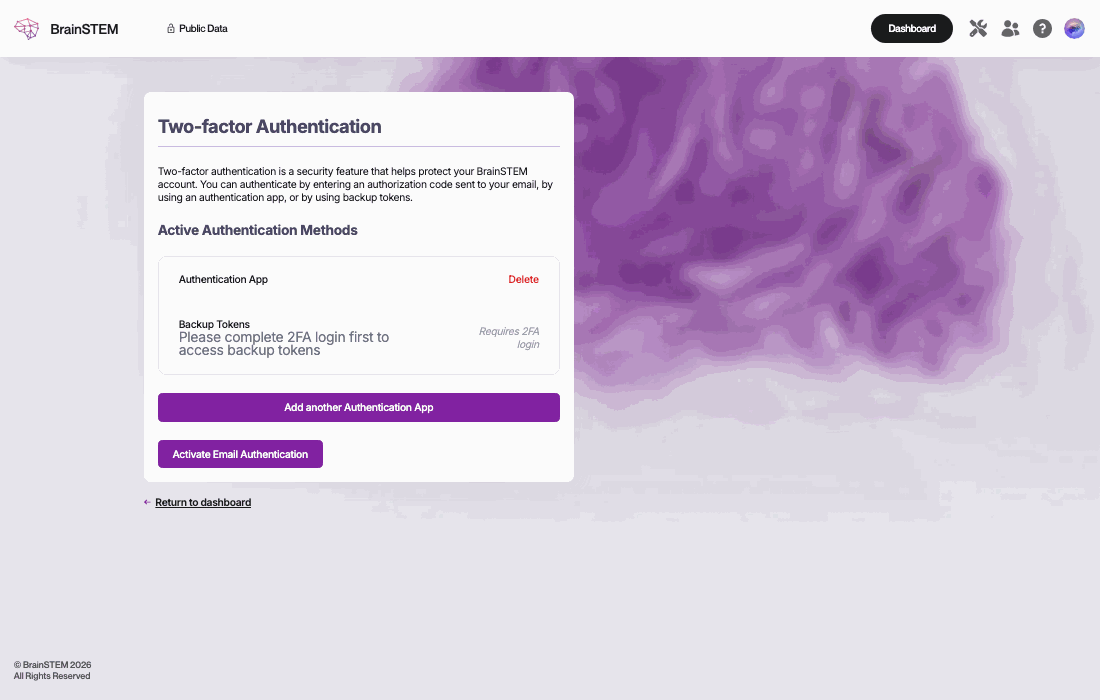
Two-factor authentication page with one authenticator app. Backup tokens become available after you have signed in with a second factor.
Authenticator apps
Any TOTP app works, for example Google Authenticator, Microsoft Authenticator, Duo Mobile or Authy. The app shows a 6-digit code that changes every 30 seconds.
Email codes
With Email Authentication a 6-digit code is sent to your account email at sign-in. The method listed first is marked (Default) and is used first at sign-in; you can switch to another method on the sign-in page.
Backup tokens
Backup tokens are single-use codes for when you cannot reach your app or email. View Tokens shows the remaining tokens; Generate Tokens replaces them. They are deleted when you remove your last method, see Managing methods.
Signing in with 2FA
- Enter your email and password.
- Enter the code from your default method, or choose another method or a backup token.
- Tick Keep me signed in to stay signed in longer. How long each kind of session lasts, and when repeated failed attempts block sign-in, is described under Session lifetime and lockout.
Managing methods
Methods and backup tokens are managed on the same two-factor page. Each method has its own control in the Active Authentication Methods table:
| Method | Control | Confirmation |
|---|---|---|
| Authenticator app | Delete | Delete Authenticator App: “Are you sure you want to remove this authenticator?” |
| Email authentication | Disable, shown only when your organisation does not require two-factor sign-in | Disable Email authentication: “Are you sure you want to disable email-based authentication?” |
Click Confirm to remove the method, or Cancel. Before removing or disabling a method, BrainSTEM asks for a fresh code from one of your methods.
- Add a new method before removing the one you rely on.
- When your organisation requires two-factor sign-in, the email method has no Disable link, and removing your last remaining method is refused: “Your organization requires at least one authentication method.”
Removing your last method also deletes your backup tokens. Add the new method before you remove the old one: without a working method or a backup token you cannot sign in with two factors, and only support can help you regain access (see Recovery).
Recovery
If you lose access to your app and email:
- Use a backup token to sign in.
- Add a new authenticator app or re-activate email authentication, then generate new backup tokens.
Without a backup token, contact support through the contact form.
Organisation policies and session lifetimes
Your institution can set a security policy for every account with its email domain. You see its effect at sign-in and on the two-factor page; the policy can tighten the system defaults, never loosen them:
| Setting | Meaning |
|---|---|
| Two-factor sign-in | Required or Optional |
| Stays signed in for | How long a Keep me signed in session lasts since the last activity |
| Sign-in renewed every | How often an active session is extended |
| Must sign in again after | A hard limit after which you sign in again regardless of activity |
When your institution turns on email 2FA for every account of its domain, it is enabled for you at the next sign-in if you have no two-factor method yet.
Best practices
- Prefer an authenticator app over email codes.
- Keep backup tokens offline and never share them.
- Set up a second method before you change phones.
- Review Active sessions in the avatar menu now and then and sign out devices you no longer use, see User profile.
Related
- User profile: Active sessions, Change password and the session lifetimes and lockout
- User profile: API tokens: why a token needs a two-factor method first
- API: signing in from scripts with a personal access token or the device flow
- Get started: creating your account