AI assistant
Table of contents
- Overview
- Opening the assistant
- Search records
- How to
- Settings page
- Suggest details with AI on RRID and DOI forms
- What the assistant cannot do
- Privacy
- Limits
- Related
Overview
The AI assistant finds records for you. Ask a question in plain language, for example “Long Evans subjects with virus injections in CA1”, and it shows the matching records as cards; when more records match than it shows, it can link to the full list. The search runs on BrainSTEM’s server with your permissions, so you see only records you can already read. Region and product names do not have to be written exactly as stored. The assistant only reads: it never creates, changes or deletes records. What it sends to the language model provider is listed under Privacy.
For AI use outside the web interface, see the MCP server and the agent skills; Working with AI compares what each of them sends and can change.
Opening the assistant
Click the sparkle button in the corner of any private page (Open BrainSTEM assistant) or choose AI assistant from the Tools menu. The assistant opens as a drawer beside the page. Minimize folds it back to the corner button; “Your search and results stay.” The drawer has two tabs: Search records and, when enabled on the site, How to.
Search records
Type a question in plain language in What are you looking for? and press Enter. The assistant turns it into a search, runs it on the server and returns up to 20 result cards. The first six are shown; Show all reveals the rest. When the limit of 20 is reached, the assistant can recount the total and link to the normal list view filtered to the matches, so you can work with the full set there.
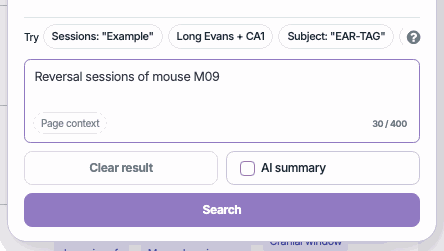
The assistant’s question box with a question typed: suggested searches (Try) above, the Page context chip in the box, and Clear result, AI summary and Search below.
What it can find:
- Any record type, filtered by name, dates, tags, status, type and the fields inside type-specific details (for example sampling rate or injection volume).
- Taxonomies and vocabularies: species, strains, procedure types, data acquisition types, behavioral paradigms.
- Anatomical regions, including subregions, also from approximate names (“dorsal hippocampus”).
- Products from the consumable and hardware catalogs by name, type or supplier, also from approximate names (“GCaMP virus”).
- Relations between records: sessions of a subject, collections of sessions, subjects with a given procedure.
Follow-up questions refine the previous result: “only last month”, “among these sessions”, “show the collections of these sessions”. The browser keeps the last five questions and answers of the conversation; the Recent dropdown lists “Your recent searches, kept on this device only”.
Search tips shown in the drawer: “We suggest using quotation marks for exact names, e.g. “Pilot study”. When relevant, include the model name or record type, e.g. find sessions with silicon probe implant procedure.”
Ordinary criteria use “a bounded evidence scan of up to 1,000 rows”, so the result of a very broad question can be incomplete. Narrow the question, or open the linked list view to work with the full set.
Example searches
The drawer offers example chips to start from:
| Chip | Search |
|---|---|
| Sessions: “Example” | Show ephys sessions from “Example” |
| Long Evans + CA1 | Find Long Evans subjects with virus injections in CA1 |
| Subject: “EAR-TAG” | Show the subject with identifier “EAR-TAG” |
| Probe implants | Show sessions with silicon probe implants in the hippocampus |
| Optogenetics this year | Find subjects with optogenetic manipulations this year |
| Open field sessions | Show sessions with open field behavior |
| Addgene consumables | List consumables from Addgene |
Page context
The Page context switch, off by default, lets the assistant “Include approved fields from the record you have open (its subject, project, dates) so the search is read in that context.” It applies only on a record page. A fixed list of fields per record type is sent, with identifiers and links removed.
AI summary
The AI summary toggle, off by default, asks the model to “grade each result card and write a short summary. Slower and uses more tokens.”
With AI summary on, the result cards are sent to the language model provider: each record’s name, a short description and the evidence for the match. Without it, your records stay on BrainSTEM’s server. See Privacy.
How to
The How to tab is off unless the site enables it. When it is shown, you can “Ask how something works, what to do next, or how records relate…”. The answers are built from reviewed BrainSTEM workflows: the model picks the matching workflow and the steps come from BrainSTEM, not from the model. When a step refers to a control on the page you are on, the drawer highlights it; otherwise it links to the right page. How-to cannot read or change records; with the page context switch on, it may use approved fields of the record you have open. This tab needs a configured provider; without one the drawer shows Connect an LLM provider with a link to the settings.
Settings page
Profile & Settings → AI assistant settings opens the settings page. “The assistant runs on BrainSTEM’s shared key, free up to a monthly allowance. Add your own API key to keep searching beyond it or to choose your own model.”
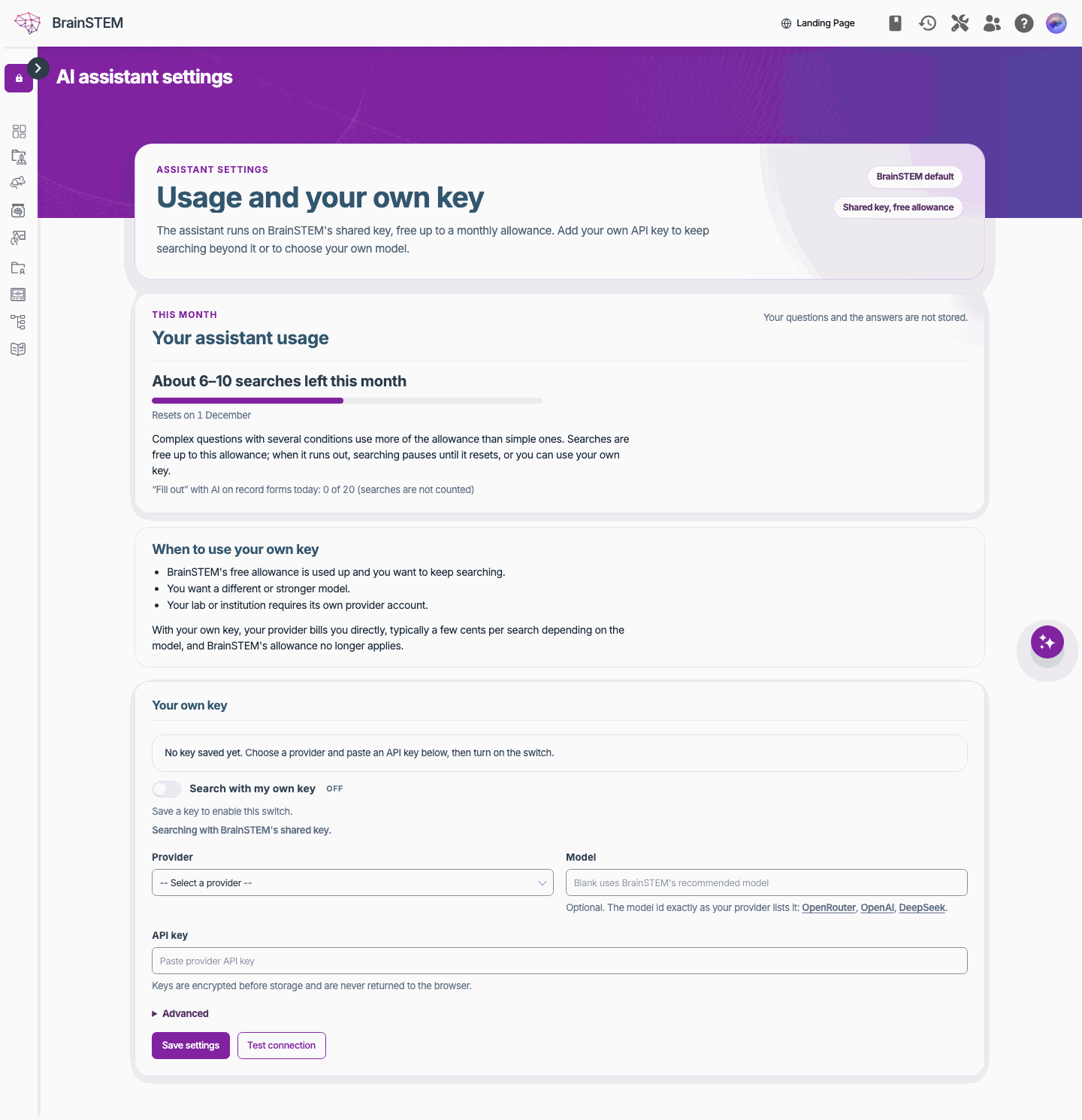
AI assistant settings: this month’s free allowance and the option to use your own key.
- Your assistant usage shows how much of this month’s free allowance is left (for example “About 6–10 searches left this month”) and when it resets, and how many “Fill out” suggestions you used today. While you search with your own key it shows what you spent this month and in total instead. “Complex questions with several conditions use more of the allowance than simple ones. Searches are free up to this allowance; when it runs out, searching pauses until it resets, or you can use your own key.”
- Under Your own key, choose a Provider (OpenRouter, OpenAI or DeepSeek), paste your API key, optionally enter a Model id exactly as your provider lists it (left blank, BrainSTEM’s recommended model is used) and, under Advanced, a Reasoning effort for reasoning models. Click Save settings, then turn on Search with my own key (“Save a key to enable this switch.”). With your own key “your provider bills you directly, typically a few cents per search depending on the model, and BrainSTEM’s allowance no longer applies.”
- Test connection sends “one tiny request with the values above (or your saved key) and report whether the provider answers and how fast. Nothing is saved.”
When to use your own key, as the page puts it: BrainSTEM’s free allowance is used up and you want to keep searching; you want a different or stronger model; or your lab or institution requires its own provider account.
Suggest details with AI on RRID and DOI forms
When the site has AI suggestions enabled, the consumable, hardware device, species and strain forms show a sparkle button next to Lookup RRID, and the publication form next to Lookup DOI. After the registry lookup has filled what it can, the button asks the model to suggest values for the remaining fields from the identifier. Suggestions are written only into empty fields, are highlighted, and can be undone. “Nothing here writes to a BrainSTEM record; the form still decides what is saved.” The settings page counts these as “Fill out” with AI, separately from searches, and shows your daily limit.
What the assistant cannot do
- It cannot create, change or delete records. “No mutation: neither the tool nor the prompt can create, change, or delete a record.”
- It cannot show you records you do not have permission to read. “A provider response never grants access by itself.”
- It does not draft entries, fill forms (apart from the opt-in suggestions above) or answer questions unrelated to BrainSTEM records and workflows.
- It does not navigate for you; How-to only highlights or links to controls.
Privacy
What reaches the language model provider (BrainSTEM’s shared provider, or your own when you switch to it):
| Mode | Sent to the provider | Stays on BrainSTEM |
|---|---|---|
| Search | Your question, a description of the data model and, when the model asks for them, names from the shared taxonomies. Short phrases for approximate region or product names go to the embedding service. | Your records: the query runs on BrainSTEM’s server. |
| Page context on | In addition, a fixed list of fields of the record you have open, with identifiers and links removed. | Everything else about the record. |
| AI summary on | In addition, the result cards: each record’s name, a short description and the evidence for the match. | The rest of the records. |
- “Your questions and the answers are not stored.” Your recent searches are kept in your browser only.
- “Keys are encrypted before storage and never returned to the browser.”
- Usage logs record calls, tokens and cost only; they “never carry prompts, API keys, record IDs, or private context”.
Limits
- A question can be up to 400 characters long; each search returns at most 20 cards.
- You can run one search at a time, and about ten searches per minute. A busy assistant answers with “try again shortly” and a wait time.
- A search stops after two minutes if the provider does not answer.
- Searches on the shared key count toward your monthly allowance; searches on your own key do not.
- AI suggestions on RRID/DOI forms are limited per user and per day; the settings page shows your usage. Suggestions already looked up for an identifier are reused and free.
Related
- Working with AI: a walk-through of the assistant, the MCP server and the agent skills
- MCP server and Agent skills: AI access to your records outside the browser
- List view: the filters the assistant hands over when a result set is large
- User profile: where the AI assistant settings page is reached from
- Anatomical regions: the region names and acronyms the assistant understands