SoftMouse integration
Table of contents
Overview
The SoftMouse integration imports colony records from SoftMouse into BrainSTEM. It is a one-way import: BrainSTEM reads from SoftMouse and never writes back. Records can be pulled directly through the SoftMouse API or uploaded as an Excel export from SoftMouse.
| SoftMouse | BrainSTEM | Source |
|---|---|---|
| Animals | Subjects | API and Excel |
| Studies | Cohorts in each of the import’s target projects (no new project is created) | API and Excel |
| Protocols | Licenses | API and Excel |
| Cages | Housing logs (subject logs) | API and Excel |
| Matings | Breedings | Excel only |
| Litters, Strains | Information only, not imported | Excel |
Samples are not imported.
Deletions in SoftMouse are never applied in BrainSTEM. An animal, study, cage or protocol you delete in SoftMouse stays in BrainSTEM until you delete it there yourself.
Open the integration from Tools → SoftMouse integration. Until credentials are saved it redirects to the credentials page.
Credentials and defaults
The SoftMouse Integration page holds your connection and import defaults. Credentials are personal (one SoftMouse account per BrainSTEM user) and stored encrypted.
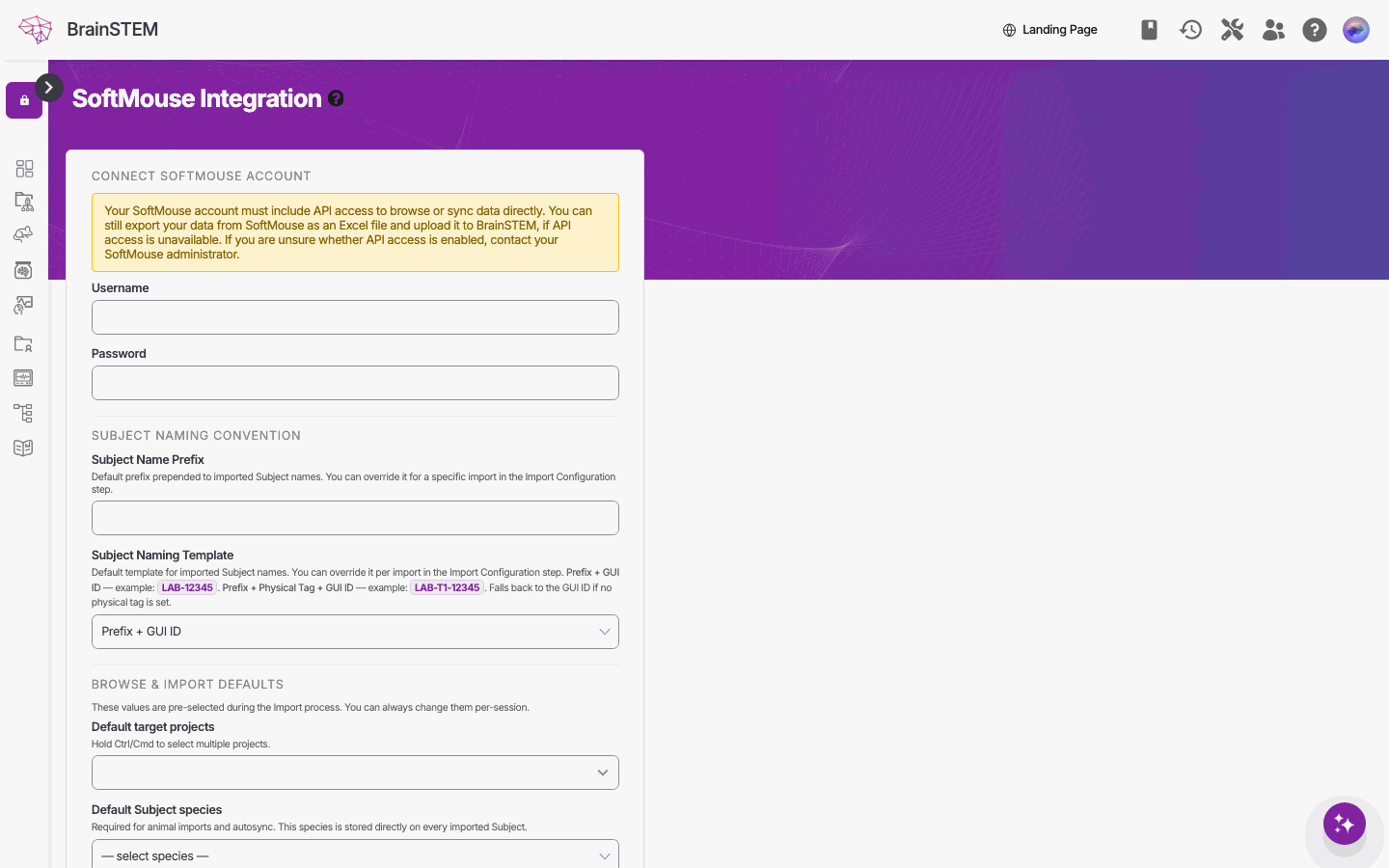
The SoftMouse Integration credentials form before connecting: Username and Password, the subject naming convention and the Browse & Import defaults.
- Username and Password of your SoftMouse account. “Your SoftMouse account must include API access to browse or sync data directly. You can still export your data from SoftMouse as an Excel file and upload it to BrainSTEM, if API access is unavailable…”
- Subject naming convention: a Subject Name Prefix (up to 50 characters, unique across BrainSTEM) and a Subject Naming Template, either Prefix + GUI ID (for example LAB-12345) or Prefix + Physical Tag + GUI ID (LAB-T1-12345).
- Browse & Import defaults: Default target projects, Default Subject species (“Required for animal imports and autosync…”), Default group (gets read and edit access to imported licenses) and a default Since date filter.
Click Save, then Test Connection to check the API access. The page also has buttons for Sync history and Browse & Import data.
Browse and import
Browse & Import data opens the browse page. Choose the Import source: SoftMouse API or Excel File.
- With the API, use the tabs Animals → Subjects, Studies → Cohorts, Protocols → Licenses and Cages → Housing logs. Filter by State (All, Active, Deceased, Inactive, Planned), Born on or after, Since date and Study code, then click Load.
- With an Excel file, upload the SoftMouse export (.xlsx or .xls, up to 10 MB). Recognised sheets are the Animal List, Cage List and Mating List, plus the Litter and Strain lists for information. The tabs add Matings → Breeding.
Select rows and click Import Selected, or Import All.
Import configuration and preview
The Import Configuration dialog asks for the Target projects, Subject naming and Subject species (required), and optionally a Write-access group and a Housing log protocol. Under Record mappings you match SoftMouse strains, suppliers and protocols to BrainSTEM entries in the Taxonomy Mapping, Resource Mapping and License Mapping tables. Create Inline adds a missing strain or supplier on the spot (it stays pending approval until the BrainSTEM team reviews it) and Open full … form opens the full form. Mappings are remembered for later imports.
A study does not become a project of its own. It is imported as cohorts inside each of the Target projects: one cohort per SoftMouse group of the study, or a single cohort named after the study when it has no groups. A study import therefore needs at least one target project.
Click Generate Preview. Every record gets a status:
| Status | Meaning |
|---|---|
| Create | A new BrainSTEM record will be created |
| Update | A matching record exists and differs; it will be updated if you choose Update existing records |
| Skip | Unchanged since the last import, or you chose Skip updates |
| Blocked | Cannot be imported, for example a missing mapping or a sire or dam that is not imported through the same connection |
Up to 500 records per type are shown in the preview. Choose Update existing records or Skip updates and click Start Import. A preview is valid for 30 minutes and can be used once.
Update existing records overwrites the imported fields of matching subjects, cohorts, licenses and housing logs with the SoftMouse values, including changes made in BrainSTEM since the last import. Choose Skip updates to create new records only and leave existing ones unchanged.
How animals are mapped
A SoftMouse animal becomes a subject with the name built from your prefix and template; the physical tag and alternative ID go into the subject identifier; sex and state are translated to BrainSTEM values (SoftMouse planned animals become planned subjects); birth and death dates are copied; the species is your default; the strain is matched within that species by name; genotype, background and generation, supplier, protocols (as licenses), phenotype and comments (as description), category (as tags) and tail tag and maturity dates are carried over. Studies become cohorts named “code - group”, cages become housing logs, the wean date updates the linked breeding, and an end type or reason becomes a wellness subject log entry. Each SoftMouse animal ID is matched once across BrainSTEM, so two users cannot import the same animal twice.
Daily autosync
The Autosync card on the credentials page keeps BrainSTEM up to date without manual imports:
- Enable daily autosync and pick the Resource types to sync: Animals, Studies / Cohorts, Cages, Protocols / Licenses.
- Email me when autosync fails or needs action.
- Save autosync settings; Resume autosync now restarts a paused sync.
Autosync runs once a day and only processes records updated since the last run, using your saved defaults and mappings. After three failures in a row it pauses for seven days; it is turned off when SoftMouse reports that API access is not enabled for your account.
Sync history
Sync history lists every import and autosync run, filtered by status, resource type and date. Each job shows its results with symbols: + created, ~ updated, ○ skipped, ! action needed, ✗ failed. Open a job for its Event Log and the last 200 Sync Records. A common notice, marked Action required, says that strains or suppliers created during the sync are waiting for approval by the BrainSTEM team before they appear in the regular dropdowns.
Limits
- One SoftMouse account per BrainSTEM user; credentials are stored encrypted.
- Excel uploads up to 10 MB.
- The preview shows at most 500 records per type and is valid for 30 minutes.
- API browsing loads 200 records per page and is limited to 60 requests per minute per user.
- Records are matched by their SoftMouse ID; unchanged records are skipped. Deletions are never applied.
- The integration is available in the web interface only, not through the REST API.
Related
- Import tool: batch entry and CSV import for data that does not come from SoftMouse
- Subjects, Cohorts and Breedings: the entries animals, studies and matings become
- Subject logs: the housing logs created from cages
- Licenses: the entries SoftMouse protocols become
- Resources & Taxonomies: what happens to strains and suppliers created inline