Two-Photon Imaging Workflow: Visual Cortex Population Dynamics
This tutorial records a two-photon calcium imaging experiment in BrainSTEM from the first mouse to the analysis-ready collection: a project and a cohort, the virus injection and the cranial window with the experimental interface it creates, a habituation session, imaging sessions with visual stimuli and eye tracking, and the collection that groups them. At the end you load the imaging acquisitions through the API and export the project for NWB conversion.
Table of contents
- Prerequisites
- Part A: Project and Subject Setup
- Part B: Surgical Procedures
- Part C: Imaging Sessions
- Part D: Health, Organization and Export
- What you have now
- Next steps
Prerequisites
- An account in a lab group (see Get started!).
- The lab entries listed in Entries you need first. They are personal attributes of your lab: you create them once and reuse them in every project.
- Contributor on the project. Contributor is a project role; groups have their own roles (Member, Manager, Owner). Adding or editing an entry needs Contributor on at least one of its projects, given to you or to one of your groups. In Step 1 you select your group under Authenticated groups, which gives its members Contributor. See Permissions.
- The setups, inventories and data storage must be shared with you or your group. The Data storage field of a session only offers storages where you are at least Contributor.
- The Electrophysiology Workflow explains the same building blocks for a probe implant; this tutorial follows its structure and only spells out what differs for imaging.
Required fields are marked with an asterisk (*) in the web interface and in the tables below.
Entries you need first
The names are the ones this tutorial selects; use your own. The equipment type (Type of equipment) and the stock type are given in brackets.
| Name | Kind | Key settings | Where to create it |
|---|---|---|---|
| Surgery Station | Setup | Setup type Stereotaxic frame; equipment Stereotaxic Frame (Stereotaxic frame) and Dental Drill (Surgical power tool) | Setting Up Lab Infrastructure |
| 2P Imaging Rig | Setup | Setup type Head-fixed passive platform; equipment Two-photon microscope (Microscope), Stimulus monitor (Monitor), Stimulus computer (Computer) and Eye tracking camera (Camera) | Setting Up Lab Infrastructure |
| Blue LED system | Equipment on 2P Imaging Rig | Light emitter, 473 nm. Only needed for the optional Step 11 | Setting Up Lab Infrastructure |
| Viral Vectors | Inventory | Consumable stock AAV1-syn-GCaMP6f (Virus solution), status Available | Setting Up Lab Infrastructure |
| Surgical Supplies | Inventory | Consumable stocks Glass coverslip 3 mm (Optical component) and Dental cement (Adhesive or cement), status Available | Setting Up Lab Infrastructure |
| Imaging Server | Data storage | Authenticated groups your lab group; organization Projects → Subjects → Sessions; one access protocol, for example SMB/CIFS | Managing Data Storage |
| Head-fixation habituation | Behavioral assay | Setup type Head-fixed passive platform. Step 7 creates it | Behavioral Assays |
Part A: Project and Subject Setup
Step 1: Create the project
- Go to Projects and click Add project.
- Fill in the first step of the form:
| Field | Value |
|---|---|
| Project name (must be unique) * | Visual Cortex Population Dynamics Study |
| Authenticated groups | Select: your lab group |
- Click Create and continue, then add the rest:
| Field | Value |
|---|---|
| Description | Population dynamics in mouse visual cortex measured with two-photon calcium imaging during visual stimulation: orientation selectivity, population correlations and retinotopy in layer 2/3. |
| Tags | two-photon, visual-cortex, calcium-imaging, mice |
| Project visibility | Private |
- Click Save; the project form does not save automatically. The form looks as in Get started.
The groups you select get Contributor access. Change roles later with Manage on the project page (see Manage Projects).
Step 2: Add the subjects
- Go to Subjects and click Add subject.
- Fill in:
| Field | Value |
|---|---|
| Subject name (must be unique) * | VC_M001 |
| Projects * | Select: Visual Cortex Population Dynamics Study |
| Sex * | Male |
| Species * | Select: Mus musculus |
| Strain | Select: C57BL/6J (only strains of the chosen species are listed) |
| Status * | Active |
| Description | Male C57BL/6J mouse for two-photon imaging of visual cortex. GCaMP6f expressed by viral injection. |
| Genetic Line | Wild type |
| Birth Date | 2024-06-15 |
| Subject Identifier | Ear punch: left ear, position 2 |
The form looks as in Get started.
- Repeat for VC_M002, VC_M003 and VC_M004, or open VC_M001 and click Duplicate: enter the new name, choose which procedures and logs to copy, click Check copy and then Duplicate. Copy as a plan marks the copies as planned, which suits animals that are not yet enrolled.
Step 2b: Record housing and weight
Subject logs follow housing and health over time. Go to Subject logs (below Subjects) and click Add subject log.
Housing log:
| Field | Value |
|---|---|
| Type | Housing log |
| Subject | Select: VC_M001 |
| Description | Standard housing for the imaging cohort |
Type-specific details:
| Field | Value |
|---|---|
| Start and end time | 2024-07-01 08:00:00 (end time can stay empty) |
| Location | Animal Facility Room 105 |
| Cage ID | Cage_B3_single |
| Cage type | Standard mouse cage |
| Light cycle | 12:12 light-dark cycle (lights on 06:00) |
| Enrichment | Paper nesting material, plastic igloo |
Monitoring log (weight and condition; use it rather than a Weighing log, which is a legacy weight-only type, see Subject logs):
| Field | Value |
|---|---|
| Type | Monitoring log |
| Subject | Select: VC_M001 |
Type-specific details:
| Field | Value |
|---|---|
| Date and time | 2024-07-01 09:00:00 |
| Weight | 24.5 g |
| Body condition score (1-5) | 3 - Ideal |
| Health observations | Pre-surgery baseline. Animal healthy and active. |
Step 3: Create the cohort
- Go to Cohorts (below Subjects) and click Add cohort.
- Fill in:
| Field | Value |
|---|---|
| Name | VC_Imaging_Cohort_1 |
| Project | Select: Visual Cortex Population Dynamics Study |
| Subjects | Select: VC_M001, VC_M002, VC_M003, VC_M004 |
| Description | First cohort for the visual cortex imaging study. 4 male C57BL/6J mice, age-matched, viral GCaMP6f expression. Single housed after surgery, 12:12 light cycle, standard chow ad libitum. |
| Tags | visual-cortex, two-photon, gcamp6f |
Step 4: Check the imaging setup
Open Personal attributes → Equipment and filter by 2P Imaging Rig. The sessions below select this equipment by name:
- the two-photon microscope (equipment type Microscope, linked to the hardware device from the catalog),
- the stimulus monitor (Monitor) and the computer that drives it (Computer),
- the eye tracking camera (Camera).
Surgery Station holds the stereotaxic frame (Stereotaxic frame) and the drill (Surgical power tool).
Part B: Surgical Procedures
Step 5: Virus injection
A procedure records the event with its type, date, coordinates, target regions and the materials it used.
- Open subject VC_M001 and add a procedure from the subject page, or go to Subjects → Procedures → Add procedure → Create blank.
- Fill in:
| Field | Value |
|---|---|
| Type of procedure * | Virus injection |
| Subject * | Select: VC_M001 |
| Status * | Performed |
| Date and time of the procedure | 2024-07-15 10:00:00 |
| Equipment | Select: Stereotaxic Frame (from Surgery Station) |
| Protocol | Select your injection protocol, if you keep one |
| Atlas | Allen Mouse Common Coordinate Framework |
| Target regions | Type to search and select the primary visual area (VISp) |
| Coordinates | Stereotaxic Bregma-Based Absolute Coordinates |
| Notes | AAV injection for GCaMP6f expression in V1. Three weeks for expression before the window. |
Coordinate details:
| Field | Value |
|---|---|
| AP coordinate | -3.0 mm |
| ML coordinate | +2.5 mm |
| DV coordinate | 1.0 mm (the brain surface was 0.7 mm below Bregma at this site; the target is 0.3 mm deeper, in layer 2/3) |
| AP angle | 0° |
| ML angle | 0° |
| Rotation | 0° |
Choose an absolute Bregma-based system if you plan to export to NWB. The converter writes it as a localization point; brain-surface systems with a depth, such as Stereotaxic Bregma-Based Surface Coordinates with Depth, are not written (see Exporting to NWB and Coordinate systems).
Click View coordinates to check the injection site in the Allen CCF before saving (see Atlases and coordinates). Record the second hemisphere as a second procedure.
- Type-specific Details:
| Field | Value |
|---|---|
| Injection volume | 500 nL |
| Injection rate | 100 nL/min |
| Injection profile | Bolus injection |
| Injection route | Intraparenchymal |
| Post-infusion dwell | 5 min |
- Materials tab: click + Add material and add the rows the type takes.
| Material role | Material source | Value |
|---|---|---|
| Viral-vector preparation (required) | Consumable stock | Inventory Viral Vectors, stock AAV1-syn-GCaMP6f |
| Vehicle | Manual entry | Sterile PBS |
The row’s details hold the Applied volume and the Effective delivered titer of this injection. Only stock with status Available or Reserved is offered; the row keeps a copy of the stock’s details (catalog item, lot, dates), so the entry stays readable if the inventory changes later.

The Materials tab of a virus injection from the demo data: a viral-vector preparation (AAV-CAG-jGCaMP8f-WPRE from Addgene, a GCaMP indicator like the tutorial’s GCaMP6f) from the inventory and the injection syringe.
- Click Save. A virus injection creates no experimental interface; the expressed indicator is reached through the subject’s procedure history.
Anesthesia and analgesia are their own procedures (Anesthesia with the required Anesthetic agent material and the stages Induction and Maintenance; Analgesic with its Active agent). Group them with the injection in a procedure episode to record one perioperative event with severity and recovery outcome; see Step 5b of the Electrophysiology Workflow.
Step 6: Cranial window
Three weeks later, record the window. Saving a Cranial window procedure also creates the experimental interface (the window) that the imaging acquisitions refer to.
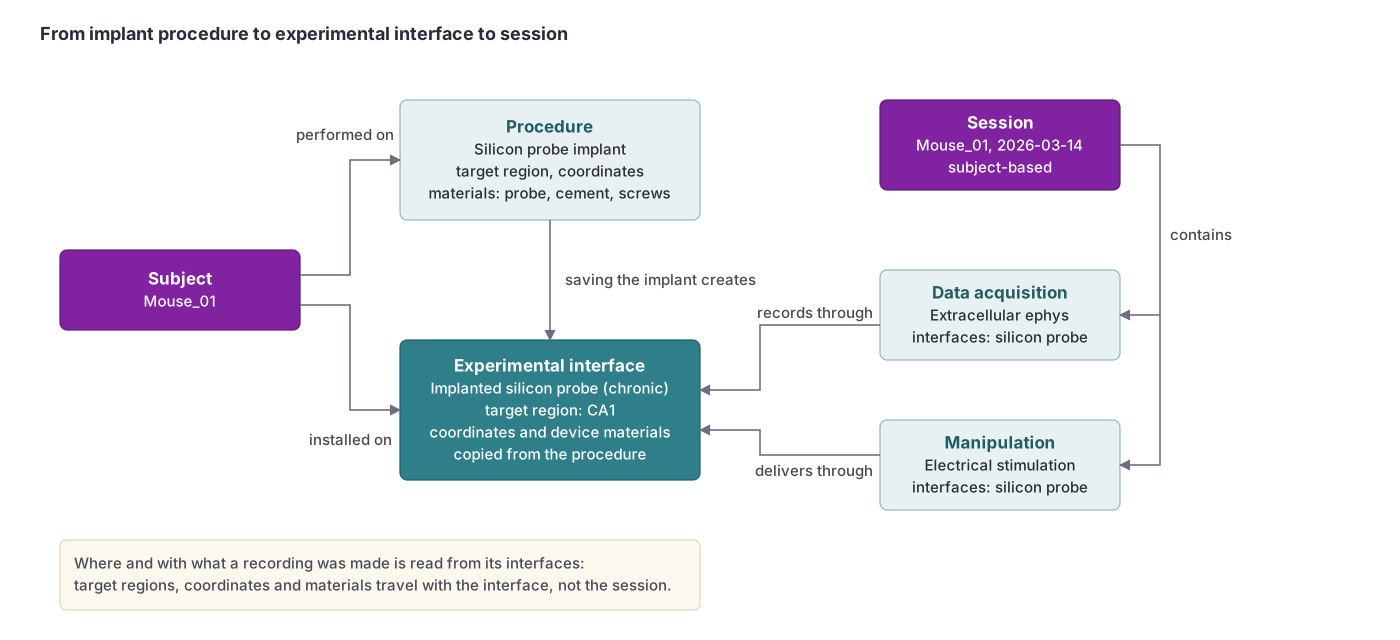 Saving an implant procedure creates an experimental interface on the subject. Sessions record through the interface, so a data acquisition inherits where (target region, coordinates) and with what (materials) it was made.
- Add a procedure on VC_M001 as in Step 5 and fill in:
| Field | Value |
|---|---|
| Type of procedure * | Cranial window |
| Subject * | Select: VC_M001 |
| Status * | Performed |
| Date and time of the procedure | 2024-08-05 09:00:00 |
| Equipment | Select: Stereotaxic Frame, Dental Drill |
| Atlas | Allen Mouse Common Coordinate Framework |
| Target regions | Primary visual area (VISp) |
| Coordinates | Stereotaxic Bregma-Based Absolute Coordinates: the window center at AP coordinate -3.0 mm, ML coordinate +2.5 mm, DV coordinate 0.7 mm (the brain surface), angles and Rotation 0° |
| Notes | 3 mm window over binocular V1, dura intact, sealed with a 3 mm glass coverslip. Head plate attached with dental cement. |
- Type-specific Details:
| Field | Value |
|---|---|
| Surgical method | Craniotomy with dental drill, coverslip glued to the skull |
| Shape of cranial window | Circular |
| Dimensions of cranial window | 3 mm diameter, 0.15 mm thick |
| Orientation of cranial window | Centered on the injection site, parallel to the skull surface |
- Materials tab:
| Material role | Material source | Value |
|---|---|---|
| Cranial window (required) | Consumable stock | Inventory Surgical Supplies, stock Glass coverslip 3 mm (an Optical component stock) |
| Adhesive, cement, or sealant | Consumable stock | Dental cement |
| Surgical supply | Manual entry | Gelfoam |
- Click Save. The interface VC_M001 | Cranial window appears on the procedure’s Experimental interfaces tab and under Sessions → Experimental interfaces. Which of its fields stay tied to the procedure is described in Experimental interfaces created by procedures.
The procedure’s Subject is now fixed. Change the window’s coordinates, target regions or equipment on the procedure; they cannot be edited on the interface.
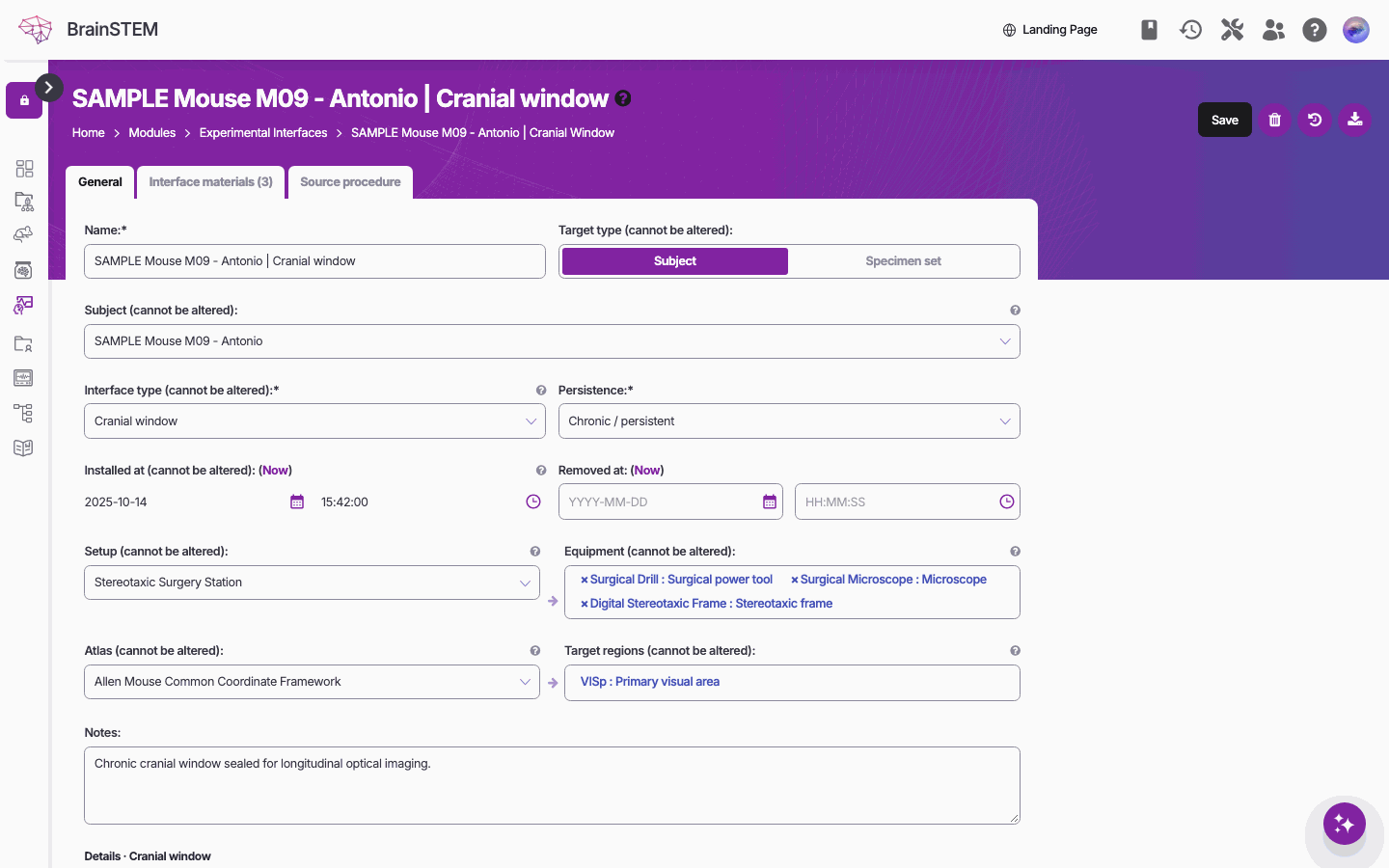
The experimental interface a cranial window procedure created: subject, interface type, persistence, setup, equipment, atlas and target region.
Record the head plate as a separate Headpost procedure (required material Headpost, details Material, Shape, Construction method and Attachment method). It creates a Headpost interface of its own.
To record a surgery before it happens, set Status to Planned; see the Status field on the Procedures page.
A planned cranial window creates no interface, so the imaging acquisitions cannot select the window. Click Mark as performed after the surgery (see Planning).
Part C: Imaging Sessions
Step 7: Habituation session
Start with head-fixation habituation, recorded as a session with a behavior and no imaging.
- Create the behavioral assay once (Personal attributes → Behavioral assays → Add behavioral assay; see Behavioral Assays):
| Field | Value |
|---|---|
| Name of behavioral assay * | Head-fixation habituation |
| Setup category | Head-Fixed Awake (narrows the setup type list) |
| Setup type * | Head-fixed passive platform (the setup type of 2P Imaging Rig) |
| Behavioral paradigm * | Head-fixation habituation. If no habituation paradigm is listed, add it under Taxonomies → Behavioral paradigms; your pending entry can be selected right away |
| Authenticated groups * | Select: your lab group |
| Description | Habituation to head fixation under the microscope: daily sessions of increasing duration (10 to 30 min), neutral gray screen, water rewards for calm behavior. |
| Behavioral assay visibility | Private |
- Go to Sessions and click Add session:
| Field | Value |
|---|---|
| Session name (must be unique) * | VC_M001_Day1_Habituation |
| Session type * | Subject |
| Projects * | Select: Visual Cortex Population Dynamics Study |
| Subjects | Select: VC_M001 |
| Status * | Performed |
- Click Create and continue, then add the rest:
| Field | Value |
|---|---|
| Description | Head-fixation habituation under the microscope, 20 min, no imaging. |
| Date and time onset | 2024-08-19 14:00:00 |
| Tags | habituation, head-fixation |
| Data storage | Select: Imaging Server |
- On the Behavior tab add a behavior:
| Field | Value |
|---|---|
| Subjects | Select: VC_M001 |
| Setup | Select: 2P Imaging Rig |
| Behavioral assay | Select: Head-fixation habituation |
Sessions have no setup, duration or behavioral assay fields of their own. The setup and assay are recorded on the behavior, and the assay must have the same setup type as the setup.
Step 8: Visual stimulation imaging session
The main session combines imaging, the stimulus log and eye tracking over 30 minutes: 5 min of gray screen, 20 min of drifting gratings and 5 min of gray screen. Every data acquisition names the experimental interface the signal passed through, so first create the two interfaces that no procedure creates.
- Interfaces for the monitor and the eye camera (once per subject). Go to Sessions → Experimental interfaces → Add experimental interface:
| Field | Visual display | Eye camera |
|---|---|---|
| Name * | VC_M001 visual display | VC_M001 eye camera |
| Interface type * | Visual stimulator | Camera |
| Target type | Subject | Subject |
| Subject | VC_M001 | VC_M001 |
| Persistence * | Chronic / persistent | Chronic / persistent |
| Equipment | Stimulus monitor | Eye tracking camera |
| Details | Presentation device Monitor, Stimulus position Contralateral, Stimulation context Passive | View Right eye, Frame rate (Hz) 60 |
Equipment-backed interface types take no materials. Reuse both interfaces in every session of this mouse.
- Create the session:
| Field | Value |
|---|---|
| Session name (must be unique) * | VC_M001_Day1_DriftingGratings |
| Session type * | Subject |
| Projects * | Select: Visual Cortex Population Dynamics Study |
| Subjects | Select: VC_M001 |
| Status * | Performed |
The form looks as in Get started.
- Click Create and continue, then add the rest:
| Field | Value |
|---|---|
| Description | Two-photon calcium imaging during drifting gratings, 30 min: 5 min gray screen, 20 min gratings, 5 min gray screen. 8 orientations (0° to 315° in 45° steps), 2 s stimulus, 4 s interval, 25 repeats each, randomized. Screen at 25 cm. |
| Date and time onset | 2024-08-20 15:00:00 (the NWB converter writes no file for a session without an onset; see Exporting to NWB) |
| Tags | imaging, drifting-gratings |
| Data storage | Select: Imaging Server |
| Session name in data storage | vc_m001_day1_gratings |
- On the Data acquisition tab add three acquisitions. All three cover the full 30 minutes.
Two-photon imaging:
| Field | Value |
|---|---|
| Type of data acquisition * | Two-Photon Microscopy |
| Experimental interfaces * | Select: VC_M001 | Cranial window |
| Equipment | Select: Two-photon microscope |
| Notes | Single plane in layer 2/3, 920 nm excitation for GCaMP6f. |
Type-specific details:
| Field | Value |
|---|---|
| File name | VC_M001_Day1_DriftingGratings_plane1.tif |
| Format | TIFF |
| Compression | LZW |
| Vertical resolution | 512 |
| Horizontal resolution | 512 |
| Number of frames | 27900 (30 min at 15.5 Hz) |
| Frame rate | 15.5 Hz |
| Laser power | 25 mW |
| Excitation wavelength | 920 nm |
| Imaging depth | 150 µm |
| Voxel size (X dimension) | 0.65 µm |
| Voxel size (Y dimension) | 0.65 µm |
Stimulus log:
| Field | Value |
|---|---|
| Type of data acquisition * | General time-series |
| Experimental interfaces * | Select: VC_M001 visual display |
| Equipment | Select: Stimulus computer |
| Notes | Stimulus timing and parameters, one row per monitor frame. |
Type-specific details: Format CSV, Data-type float32, Number of channels 3, Sampling rate 60 Hz, Number of samples 108000 (30 min at 60 Hz).
Eye tracking:
| Field | Value |
|---|---|
| Type of data acquisition * | Video Tracking |
| Experimental interfaces * | Select: VC_M001 eye camera |
| Equipment | Select: Eye tracking camera |
| Notes | Pupil tracking during stimulation. |
Type-specific details: Format AVI, Compression H.264, Frame rate 60 Hz, Number of frames 108000 (30 min at 60 Hz), Vertical resolution 480, Horizontal resolution 640.
Which interfaces a data acquisition can select is described in Interfaces in sessions.
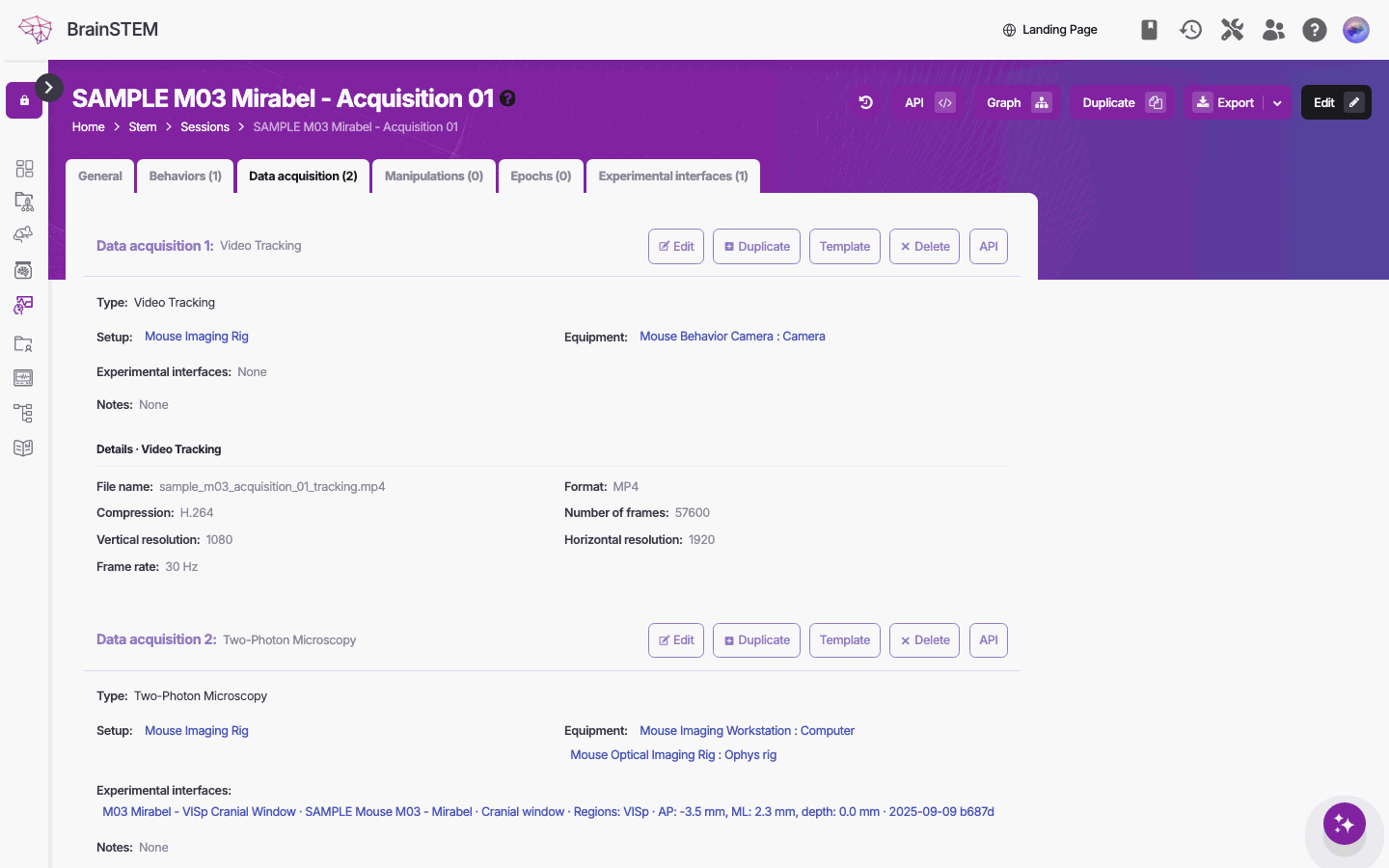
The Data acquisition tab of a two-photon session from the demo data (SAMPLE M03 Mirabel - Acquisition 01): a Video Tracking entry and, below it, the session’s second data acquisition, a Two-Photon Microscopy entry recorded through the cranial window interface. Your gratings session lists the entries you added.
- On the Epochs tab add the epochs and drag the acquisitions from Link to epochs onto them:
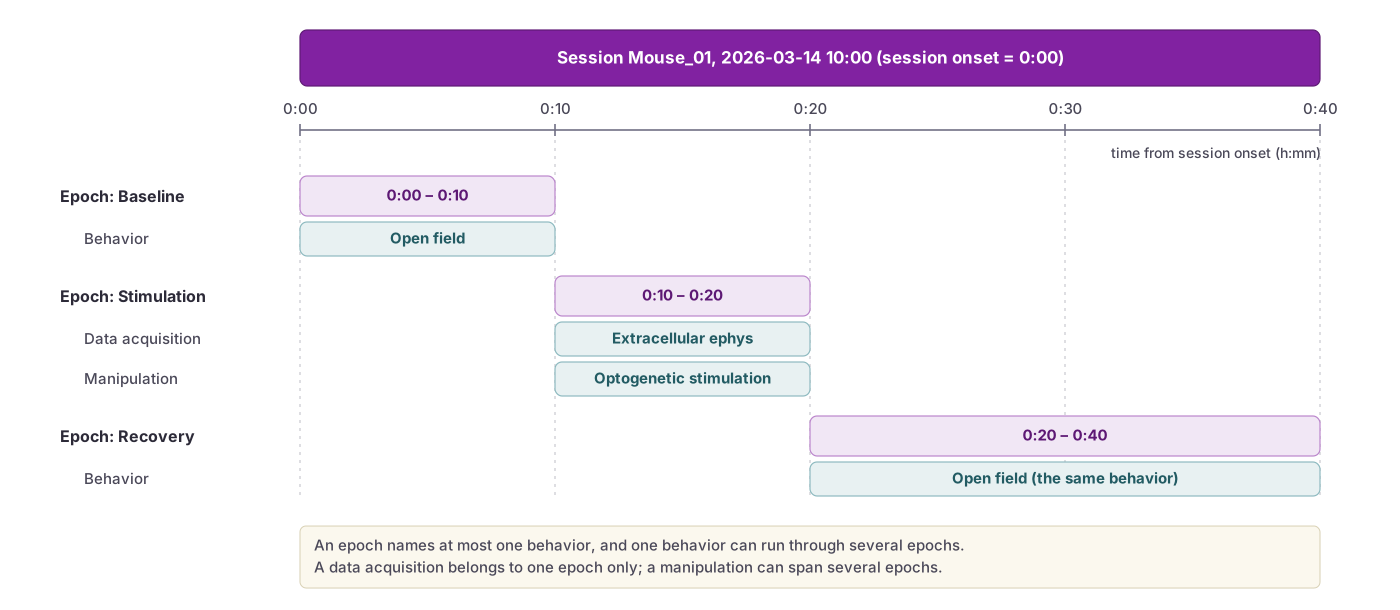 Epochs are named intervals measured from the session onset. Behaviors, data acquisitions and manipulations are linked to the epoch they belong to.
| Name | Start | End |
|---|---|---|
| Baseline | 00:00:00 | 00:05:00 |
| Stimulus_presentation | 00:05:00 | 00:25:00 |
| Post_stimulus | 00:25:00 | 00:30:00 |
The stimulus block is 8 orientations × 25 repeats × 6 s = 20 min; the gray screen before and after is described in the session’s Description, since an epoch has no description of its own. Link the three acquisitions to Stimulus_presentation.
A data acquisition belongs to one epoch only, even when the recording runs through several epochs. Choose the epoch the recording is for before you link it.
How epoch times and links work is described on the Epochs page.
Step 9: Retinotopy session
Repeat Step 8 for a 20-minute mapping session; the interfaces already exist.
| Field | Value |
|---|---|
| Session name (must be unique) * | VC_M001_Day2_RetinotopyMapping |
| Session type * | Subject |
| Projects * | Select: Visual Cortex Population Dynamics Study |
| Subjects | Select: VC_M001 |
| Status * | Performed |
After Create and continue:
| Field | Value |
|---|---|
| Description | Retinotopic mapping with moving bars: white bars on black, 2° wide, 4 directions, 10 sweeps per direction, 30 s per sweep (20 min). |
| Date and time onset | 2024-08-21 15:30:00 |
| Tags | retinotopy, mapping |
| Data storage | Select: Imaging Server |
Add the Two-Photon Microscopy acquisition on VC_M001 | Cranial window with the same imaging details as Day 1 except Number of frames 18600 (20 min at 15.5 Hz) and Laser power 28 mW, and the stimulus log on VC_M001 visual display with Number of samples 72000 (20 min at 60 Hz).
Step 10: Multi-plane session
Create a third session, VC_M001_Day3_MultiPlane, with the 30-minute gratings protocol of Step 8. Imaging at two depths is recorded as two Two-Photon Microscopy acquisitions on the same interface, one per plane. The microscope alternates between the planes, so each plane is sampled at half the 15.5 Hz frame rate:
| Field | Plane 1 | Plane 2 |
|---|---|---|
| File name | VC_M001_Day3_plane1.tif | VC_M001_Day3_plane2.tif |
| Imaging depth | 150 µm | 250 µm |
| Laser power | 25 mW | 35 mW |
| Frame rate | 7.75 Hz | 7.75 Hz |
| Number of frames | 13950 | 13950 |
| Notes | Upper layer 2/3 | Lower layer 2/3, higher power for depth |
The remaining details (resolution, wavelength, voxel size) are the same as in Step 8. Save the first acquisition as a template with Create Template and use Create from template for the second; only the file name, depth, power and notes change.
Step 11: Optogenetic manipulation (optional)
For imaging combined with optogenetics, the mouse also needs a ChR2 Virus injection and an Optic fiber implant procedure, recorded as in Steps 5 and 6. The implant creates the interface VC_M001 | Optic fiber implant. Add a Manipulation to the session (see Manipulations):
| Field | Value |
|---|---|
| Type of manipulation * | Optogenetic stimulation |
| Experimental interfaces * | Select: VC_M001 | Optic fiber implant |
| Equipment | Select: Blue LED system |
| Notes | ChR2 activation during stimulus presentation. |
Type-specific details (a table with one row per stimulation pattern):
| Field | Value |
|---|---|
| Power | 5 mW |
| Profile | Square |
| Duration | 2 s |
| Duty cycle | 0.5 |
| Repetitions | 20 |
| Wavelength | 473 nm |
| Closed loop | Unchecked |
Part D: Health, Organization and Export
Step 12: Welfare checks
After the surgeries and after each imaging day, add a subject log of type Welfare check on VC_M001:
| Field | Value |
|---|---|
| Date and time | 2024-08-20 18:00:00 |
| Condition & demeanour (0-4) (required) | 0 - Bright, alert, responsive (normal) |
| Procedure / wound site type | Implant site (headcap, connector, electrode, fibre…) |
| Site observation | Window clear, head plate firm, no inflammation. |
| Actions taken (required) | No action needed — within normal limits |
| Humane endpoint criteria met (required) | No |
Welfare checks and monitoring logs can also be added from a procedure episode page, with a Phase such as Recovery or Follow-up.
Step 13: Create the collection
Go to Collections (below Sessions) and click Add collection:
| Field | Value |
|---|---|
| Name | VC_M001_Orientation_Tuning_Week1 |
| Project | Select: Visual Cortex Population Dynamics Study |
| Sessions | Select: VC_M001_Day1_DriftingGratings, VC_M001_Day2_RetinotopyMapping, VC_M001_Day3_MultiPlane |
| Description | First week of orientation tuning and retinotopy for VC_M001: single-plane and two-plane imaging with drifting gratings and moving bars. |
| Tags | orientation-tuning, retinotopy, week1 |
Step 14: Load the imaging entries from the API
With the Python API tool:
from brainstem_api_tools import BrainstemClient

client = BrainstemClient()

# Step 1: Resolve the project name to its id
projects = client.load('project',
                       filters={'name': 'Visual Cortex Population Dynamics Study'}).json()
project_id = projects['projects'][0]['id']

# Step 2: Every session of the project
sessions = client.load('session', filters={'projects': project_id},
                       load_all=True)['sessions']
session_ids = [s['id'] for s in sessions]

# Step 3: The two-photon acquisitions per session, with the interfaces they used
imaging = []
for sid in session_ids:
    resp = client.load('dataacquisition',
                       filters={'session': sid, 'type': 'TwoPhotonMicroscopy'},
                       include=['interfaces']).json()
    imaging.extend(resp.get('data_acquisitions', []))

# Step 4: The cranial window interfaces
windows = client.load('experimentalinterface',
                      filters={'type': 'CranialWindow'}, load_all=True)['experimentalinterfaces']
Planned sessions and procedures are left out of API lists unless asked for; see Planning on the Sessions page.
Step 15: Export the project
- Open the project’s details page and click Export → Download project data.
- Choose File format JSON and Contents Whole project (or one session, which suits one NWB file), then click Download. The options are described in Exports and reports. From Python,
client.export_project(project_id)gives the same file. - Convert the file with brainstem-nwb as in Exporting to NWB. It writes the subject, the virus injection, the cranial window and the imaging acquisitions as metadata; the imaging data itself is not converted.
What you have now
- The project Visual Cortex Population Dynamics Study with four subjects in the cohort VC_Imaging_Cohort_1.
- For VC_M001: a housing log, a monitoring log and welfare checks; a virus injection; a cranial window and a headpost with their interfaces VC_M001 | Cranial window and VC_M001 | Headpost; and the interfaces VC_M001 visual display and VC_M001 eye camera.
- Four sessions: the habituation session with its behavior, the 30-minute drifting gratings session with three data acquisitions and three epochs, the 20-minute retinotopy session and the two-plane session.
- The collection VC_M001_Orientation_Tuning_Week1 with the three imaging sessions.
- A JSON export of the project, ready for brainstem-nwb.
Next steps
- Data model: Procedures, Experimental interfaces, Sessions, Data acquisition with the data acquisition types (every field of Two-Photon Microscopy), Epochs, Manipulations, Subject logs, Behavioral assays and Collections.
- Probe implants instead of windows: the Electrophysiology Workflow records a silicon probe implant with the same procedure, interface and session entries.
- Data files: build file paths from the API with Managing Data Storage.
- Scripting: the Python API tool and MATLAB API tool.
- Share: make the project and the behavioral assay public with Share data publicly.